Edit your course settings
| Site: | Online Professional Learning |
| Course: | Programme Leader Induction Course MATERIALS |
| Book: | Edit your course settings |
| Printed by: | Guest user |
| Date: | Saturday, 17 October 2026, 10:16 AM |
Editing your profile
Before the course starts, please ensure that you have created your online identity by:
- editing your online learning profile page to:
- upload a photo
- check your email settings
- editing your PDQ Connect profile page to:
- include an image
- a brief biography
- some images of your school or a hobby etc.
On the next pages, you will find instructions for updating your profile.
Update your online learning profile picture
To create your online identity and share information about yourself with others e.g where you live and your teaching experience:
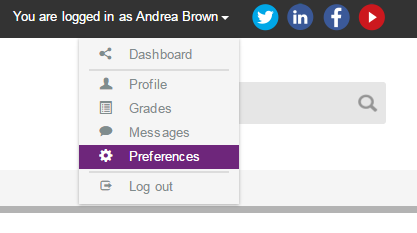
- Click on your name on the top right of the screen. Click preferences.
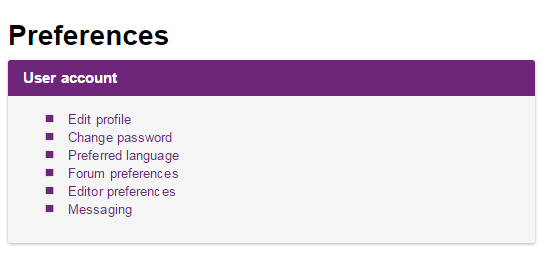
- On the preferences page, click edit profile.
- Enter a brief Description of yourself, including a brief description of your teaching experience.
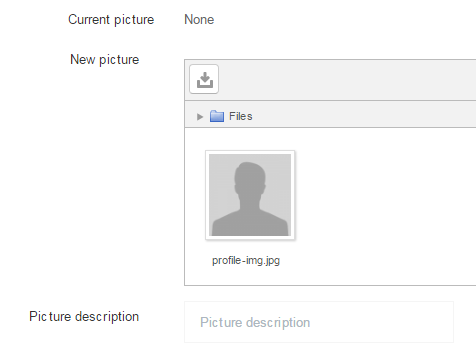
- Under User picture, you can drag and drop a picture or click the choose a file icon in the top left of the window:
- In the File picker, click Upload a file
- Browse for and select a suitable image, of yourself or an avatar. The image must be a JPG or PNG file. Note that Moodle will crop the image square and resize it to 100 x 100 pixels, so choose an image that will not become distorted in the process
- Click Upload this file
- On the profile page, enter a short Picture description to caption the image.
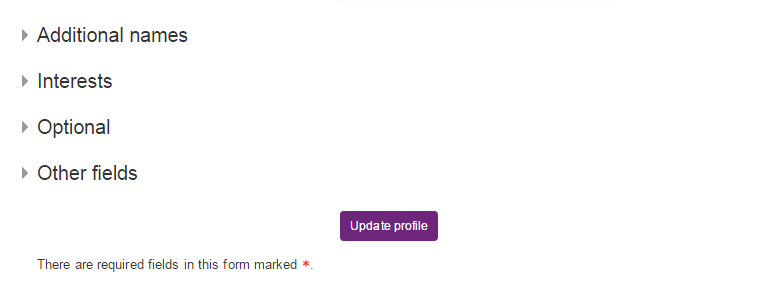
- If you want, you can add more information under Interests and Optional.
DON'T FORGET to click Update profile to save your settings.
Update your profile page in PDQ connect
To create your online identity and share information about yourself with others e.g where you live and your teaching experience:
- Click on your name on the top right of the screen. Click Preferences.

- On the preferences page, click edit profile.

- Enter a brief Description of yourself, including a brief description of your teaching experience.
- Under User picture, you can drag and drop a picture or click the choose a file icon in the top left of the window:
- In the File picker, click Upload a file
- Browse for and select a suitable image, of yourself or an avatar. The image must be a JPG or PNG file. Note that Moodle will crop the image square and resize it to 100 x 100 pixels, so choose an image that will not become distorted in the process
- Click Upload this file
- On the profile page, enter a short Picture description to caption the image.

- If you want, you can add more information under Interests and Optional.
DON'T FORGET to click Update profile to save your settings.

Managing email settings
The email address in your profile should be an address that you check regularly. It is used for sending announcements and messages from course discussion forums that you are subscribed to.
Your email address will be displayed to other users. To control the visibility of your email address you can change the settings to hide your email address, display it to everyone, or display it to only fellow course participants.
- Navigate to the edit profile page
- From Email display drop-down menu, choose one of the following:
- Allow everyone to see my email address
- Allow only other course members to see my email (this is the default)
- Hide my email from everyone (instructors will still see it)
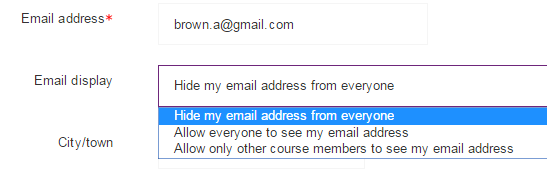
- Click the Update profile button at the very bottom of the page to save your settings
Please note: Hide my email address from everyone only hides it from other participants. Course tutors and Cambridge staff will always be able to see your email address.
Discussion forum settings
By default, all users are automatically "subscribed" to the forums in the course. You will receive email copies of posts whenever anyone makes a post to that forum.
You can configure how you receive posts and notifications from forums to which you are subscribed.
- Navigate to your preferences page. Click Forum preferences.
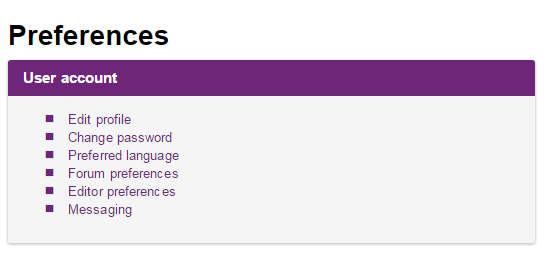
- We recommend these settings:
- Email digest type: This allows you to decide if you want email copies of posts that are added to forums or to receive messages individually or on a daily basis.
- Forum tracking – Yes: highlight new posts for me. This setting will indicate on your course home page that there are posts in a forum that you have not yet read.
Do not turn off auto-subscribe. Completion of the course requires you to actively participate in the discussion forums.
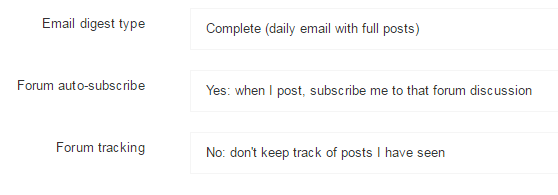
Important notes
- It’s very important that you don’t include any personal or sensitive information in your profile such as phone numbers or addresses.
- Your profile can be seen by anyone who has access to view your profile.
- Please make sure that any picture you upload is not copyrighted.