Edit your course settings
Update your online learning profile picture
To create your online identity and share information about yourself with others e.g where you live and your teaching experience:
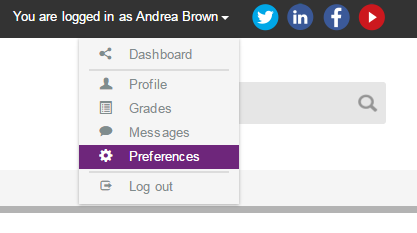
- Click on your name on the top right of the screen. Click preferences.
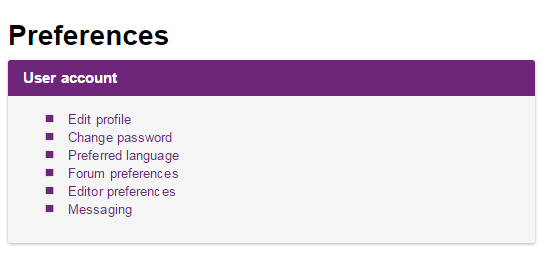
- On the preferences page, click edit profile.
- Enter a brief Description of yourself, including a brief description of your teaching experience.
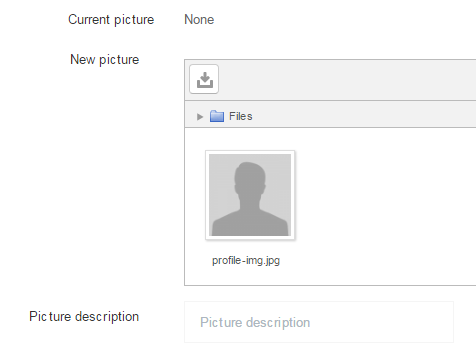
- Under User picture, you can drag and drop a picture or click the choose a file icon in the top left of the window:
- In the File picker, click Upload a file
- Browse for and select a suitable image, of yourself or an avatar. The image must be a JPG or PNG file. Note that Moodle will crop the image square and resize it to 100 x 100 pixels, so choose an image that will not become distorted in the process
- Click Upload this file
- On the profile page, enter a short Picture description to caption the image.
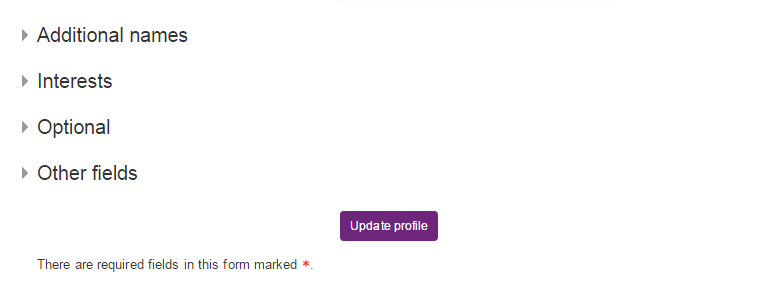
- If you want, you can add more information under Interests and Optional.
DON'T FORGET to click Update profile to save your settings.